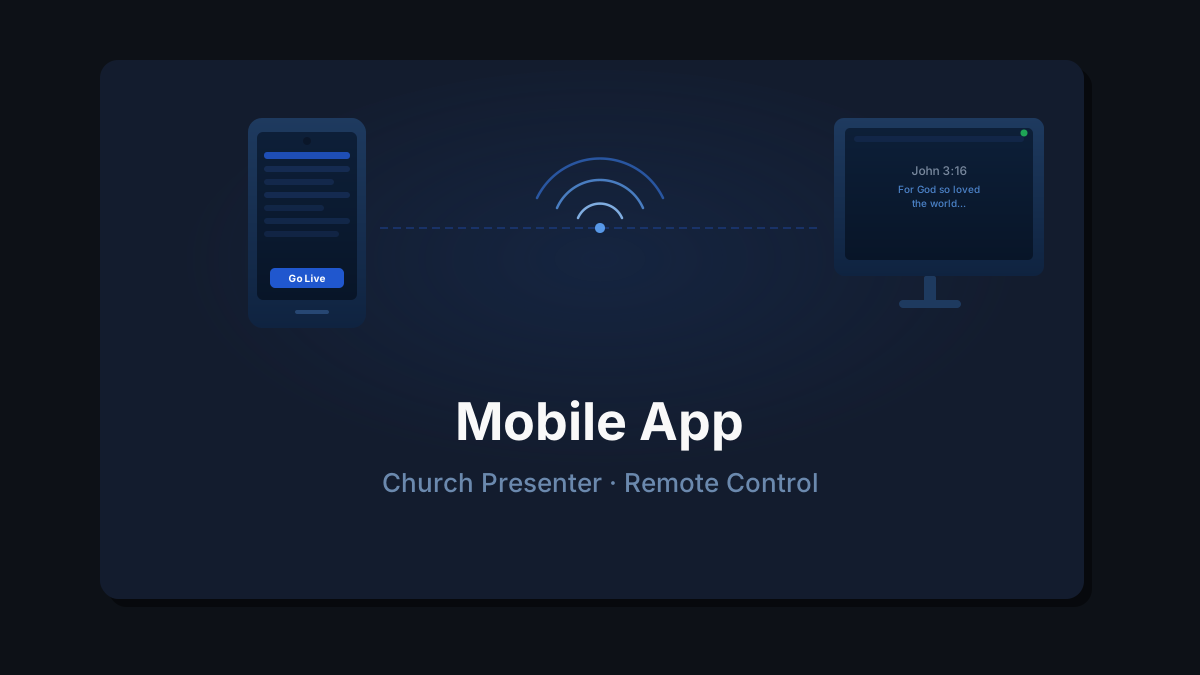
The Church Presenter mobile app turns a phone or tablet into a wireless remote for the desktop app. From the mobile app you can browse your song library, look up scripture, view the service schedule, and send items live — all over your local Wi-Fi network, with the desktop operator staying in control.
This guide covers everything: enabling the server on the desktop, downloading the app, connecting, and understanding how the approval model works.
What you need
- Church Presenter installed and running on the desktop computer connected to the projector.
- The same Wi-Fi network on both the desktop and the mobile device. The app connects over LAN — no internet connection is required.
- Church Presenter Mobile installed on your phone or tablet — available free on the App Store (iPhone and iPad) and Google Play (Android).
Step 1: Start the server on the desktop
Open Church Presenter and go to Settings → Server. Click Start Server if it isn’t already running.
Once started, the panel shows the full address the mobile app uses to connect, for example:
http://192.168.1.10:8765The number after the colon (:8765) is the port. The default is 8765 and rarely needs to change.
Tip: The server address also appears in the status bar at the bottom of the Church Presenter window once the server is running.
Step 2: Download the app and connect
Install Church Presenter from the App Store or Google Play. Open the app and go to Settings.
The easiest way to connect is to scan the QR code shown in Settings → Server on the desktop — just point your phone’s camera at it and the server address fills in automatically.
If you prefer to type the address manually, it looks like http://192.168.1.XX:8765 — the last part of the IP changes on every network. Enter it including http:// and the port number, then tap Connect.
After connecting, the app shows a status window indicating whether the connection was established successfully, failed, or whether file upload has been blocked for your device by the desktop operator. Check this screen first if anything seems off — it tells you exactly what the server is and isn’t allowing before you start using the app.
If the connection fails entirely:
- Confirm both devices are on the same Wi-Fi network (not one on cellular and one on Wi-Fi).
- Confirm the server is running on the desktop (Settings → Server shows a green status).
- Check that your router isn’t blocking device-to-device communication (some guest networks do this).
What you can do from the mobile app
Songs
Browse your full song library, organized by songbook. Search by title or number. Tap a song to view its sections, then:
- Go Live — requests to project the song on the screen. The desktop operator approves or denies before anything goes live.
- Add to Schedule — requests to add the song to the current service plan. Also goes through desktop approval.
Bible
Navigate any of the 66 books and tap a verse to display it on the projection screen. The desktop operator approves the request before it goes live.
To add a verse to the schedule instead, tap Add to Schedule.
Schedule
See the current service order as it appears on the desktop. You can scroll through all items and jump to any point in the service.
Presentations
If a PowerPoint, Keynote, or PDF file is in the schedule, the app shows its slides as thumbnails. Tap any slide to switch to it on the projection screen — subject to desktop approval.
Images
If a picture folder is loaded in the schedule, browse its images and tap one to display it — subject to desktop approval.
The approval model
Every action the mobile app sends to the desktop goes through an approval step. Nothing changes on screen until the operator responds. When a request comes in, the desktop shows a dialog with the following options:
- Allow — approves this one request.
- Allow for session — approves all future requests of the same type from this device for the rest of the session, without showing the dialog again.
- Always allow — permanently approves this type of request from this device.
- Deny — rejects this one request.
- Block for session — rejects all further requests of this type from this device until the app is restarted.
- Always block — permanently rejects this type of request from this device.
If the operator denies a request, the mobile app displays a toast message with an error code so the person holding the phone knows their action was rejected rather than just silently ignored.
You can assign a name to a device directly in the approval dialog, or later in Settings → Server. Named devices are easier to identify when multiple phones are connected at once.
Permanent permissions set with Always allow or Always block are stored per device and can be reviewed and changed at any time in Settings → Server. This lets you pre-configure trusted devices before the service so no dialogs appear during worship.
Per-device settings in Settings → Server also let you control whether a device can upload files — photos from the phone’s camera roll or presentation files from local storage. File upload can be allowed or blocked independently of other permissions, so you can give a device the ability to display content without also letting it push files onto the desktop.
Optional: require an API key
By default, anyone on the same Wi-Fi network who knows the server address can connect. To restrict access, go to Settings → Server on the desktop, enable API Key, and click Generate to create a key. Share it only with the devices you want to allow.
When an API key is active, the QR code shown in Settings → Server already embeds the key — scanning it connects and authenticates in one step. If you enter the address manually instead, the mobile app will prompt for the key on first connect and save it for future sessions.
Tips
Connect before the service. The mobile app loads the full song catalog, Bible index, and schedule when it first connects. Let it finish loading on Sunday morning before you need it — don’t connect cold in the middle of a service.
Keep the desktop awake. macOS, Windows, and Linux can put the network adapter to sleep along with the screen. Set the desktop to stay awake while the server is running, or the mobile connection will drop mid-service.
A tablet gives you more room. A tablet is more comfortable for browsing a large song library or a long schedule. A phone is ideal for quick verse lookups from the platform.
Wi-Fi only — no internet needed. The server and the mobile app communicate entirely over your local network. A simple router with no internet connection works fine — useful when the building has no ISP or where the church Wi-Fi is isolated from the internet.
Set up approvals before Sunday. Run through a quick test on Saturday — connect the phone, send a verse live, and use “Always allow” or “Allow for session” on the desktop so the approval dialogs don’t interrupt the service at a critical moment.
Ready to build a service plan from your phone? See How to Build and Run a Sunday Service Schedule in Church Presenter.