If you’ve been running SongBeamer or SongPresenter for years, switching to a new app doesn’t have to mean re-typing every song from scratch. Church Presenter includes a built-in Converter that turns .sng (SongBeamer) and .sps (SongPresenter) files directly into the .song format Church Presenter uses — preserving lyrics, verse order, section labels, and song metadata. This guide walks through the entire migration from your first converted file to a clean, duplicate-free library.
Step 1: Open the Converter
The Converter is built into Church Presenter — no separate download needed.
- Open Church Presenter.
- Go to Help → Converter.
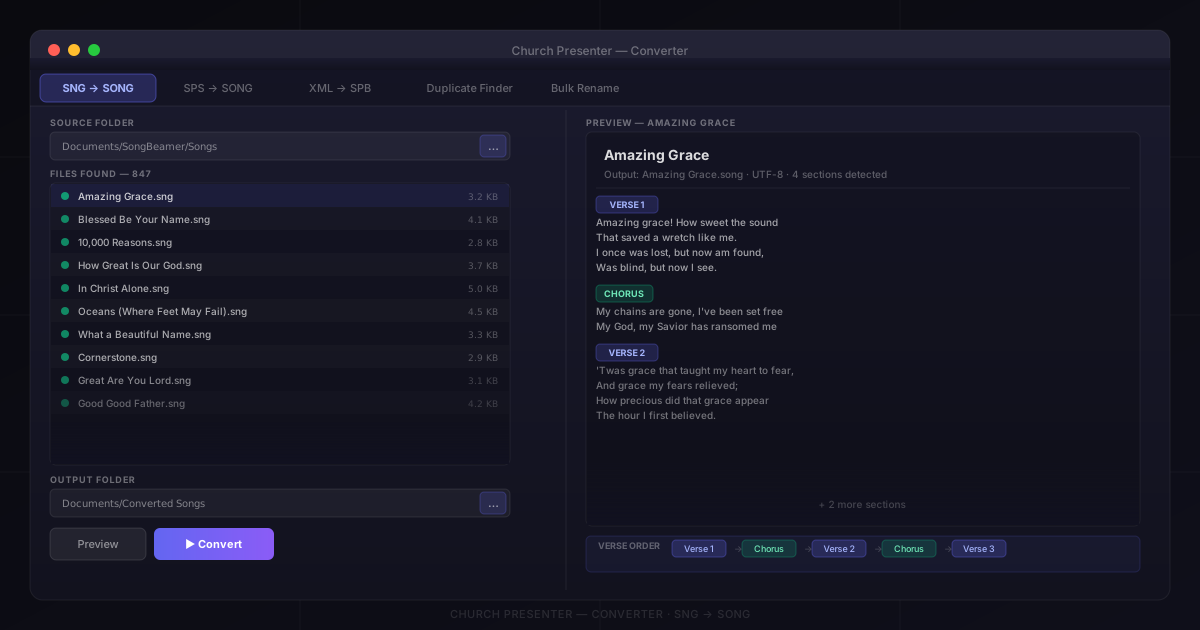
A window opens with tabs across the top for each conversion type: SNG → SONG, SPS → SONG, XML → SPB, Duplicate Finder, and Bulk Rename.
Step 2: Find your existing song files
Before converting, locate where your current app stores its songs.
SongBeamer
SongBeamer stores each song as an individual .sng text file, usually all in one folder (or a folder tree). The default location is typically Documents\SongBeamer\Songs, but your church may have moved it to a network share or external drive.
In SongBeamer, go to Settings → Paths to confirm the exact folder. You’ll be pointing the Converter at this folder in the next step.
SongPresenter
SongPresenter stores its entire songbook as a single .sps file. Windows SongPresenter uses a text-based .sps format; Mac SongPresenter uses a SQLite-based .sps file. The Converter handles both automatically — you don’t need to know which you have.
Locate the .sps file on your computer. On Windows it’s typically in Documents\SongPresenter; on Mac it’s often in the app’s Application Support folder.
Step 3: Convert from SongBeamer
- In the Converter, click the SNG → SONG tab.
- Click Select Folder to choose the folder where your
.sngfiles live. The Converter scans the folder (including sub-folders) and lists all songs it finds. - Click Preview to see exactly what will be created before anything is written to disk. The preview shows the output filename, detected verse sections, and any metadata (title, verse order) pulled from the file headers.
- Choose an Output Folder — a new empty folder works well, such as
Documents\Converted Songs. - Click Convert. The Converter creates one
.songfile per.sngfile and shows a progress count as it runs.
Encoding note: SongBeamer files can be saved in either UTF-8 or Windows-1251 (common for Russian and Eastern European libraries). The Converter detects the encoding automatically — no manual adjustment needed.
Verse order: SongBeamer files often include a #VerseOrder header that specifies the intended sequence of verses and choruses. The Converter reads this and embeds the same order in the .song file, so songs open in Church Presenter with the correct structure already set.
Step 4: Convert from SongPresenter
- In the Converter, click the SPS → SONG tab.
- Click Select File and choose your
.spsfile. - Click Preview. Because one
.spsfile contains an entire songbook, the preview shows a list of every song the Converter found inside it, along with the metadata it extracted — title, author, composer, tune name, and the detected verse/chorus structure. - Choose an Output Folder.
- Click Convert. Each song in the songbook becomes its own
.songfile in the output folder.
The Converter extracts the songbook name from the .sps file and can use it to name a sub-folder in the output, keeping converted songs organized if you’re importing from multiple songbooks.
Step 5: Move converted songs into Church Presenter
Once conversion is complete, place the .song files where Church Presenter can find them.
- Go to Settings → Songs and check the Song Library Directory path. This is the folder Church Presenter watches for
.songfiles. - Copy (or move) your converted
.songfiles — or the entire output folder — into the Song Library Directory. - Church Presenter picks up new files without needing to restart. Switch to the Songs tab and your imported library appears immediately.
If you’re importing from both SongBeamer and SongPresenter, you can convert them into the same output folder before copying — the Converter warns you before overwriting any file that would collide with an existing one.
Step 6: Find and remove duplicate songs
Most migrating libraries have duplicates — the same song that was in your SongPresenter book and also saved as a standalone .sng in SongBeamer, or duplicates that crept in over the years with slightly different titles or spellings. The Duplicate Finder in the Converter makes cleaning these up fast.
- In the Converter, click the Duplicate Finder tab.
- Click Select Folder and choose your Song Library Directory (the same folder Church Presenter reads from).
- Click Scan. The finder uses line-level fingerprinting to match songs even when a verse is missing or a word is spelled differently — it’s not a simple filename or title match.
- Results appear grouped by likely duplicate cluster. Click any group to open a side-by-side diff view showing the differences between the files — like a GitHub diff.
- In each group, check the boxes next to the files you want to delete. The Auto-select same-folder duplicates button selects the most likely duplicates automatically if you’d rather not review every one manually.
- Click Delete Selected to remove the checked files.
Homoglyph detection: If your library has songs where some characters were typed in the Latin alphabet and others in Cyrillic (a common issue with Ukrainian, Russian, and Bulgarian libraries), the finder flags and can fix these mixed-script matches — which would otherwise defeat normal duplicate detection.
Step 7: Clean up filenames (optional)
SongBeamer files often have names like 0042 - Amazing Grace.sng, and the Converter carries that naming pattern into the .song output. If you’d like cleaner filenames, the Bulk Rename tab handles this without touching each file individually.
- In the Converter, click the Bulk Rename tab.
- Click Select Folder and choose the folder containing your converted
.songfiles. - Choose a rename rule — the most useful options for migrating libraries are:
- Strip leading numbers — removes the numeric prefix (
0042 - Amazing Grace.song→Amazing Grace.song) - Rename to first verse line — replaces the filename with the song’s actual opening line, useful when original filenames were arbitrary reference numbers
- Case conversion — applies Sentence case, Title Case, lowercase, or UPPERCASE uniformly across all files
- Strip leading numbers — removes the numeric prefix (
- The Live Preview panel updates in real time as you adjust options, showing the before/after name for every file. Nothing is renamed until you confirm.
- If the new names would cause any filename collisions, the Converter highlights them so you can resolve them before committing.
- Click Rename to apply.
Checking the results
After importing, spend a few minutes verifying the library looks correct:
- Search for a song you know well — type the title in the Songs tab search field and open it. Check that all verses and the chorus are present in the right order.
- Browse a few more songs at random — spot-check that special characters (accents, umlauts, Cyrillic) came through cleanly and weren’t garbled by an encoding mismatch.
- Check for truncated songs — if a song has only one verse where you’d expect four, the source file may have used a section delimiter the Converter didn’t recognise. Open the original
.sngor.spsin a text editor alongside Church Presenter’s built-in song editor to fill in any missing sections.
If anything looks wrong, the original source files are untouched — the Converter only writes to the output folder you chose. You can adjust and re-run the conversion at any time.
Tips for a smooth migration
Convert into a staging folder first. Don’t convert directly into your live Song Library Directory. Convert into a separate folder, review the results, run the duplicate finder, then copy the clean files across. This gives you an easy rollback if anything goes wrong.
Keep your SongBeamer or SongPresenter files as a backup. Even after a successful migration, hold onto the original .sng or .sps files for a few months. If an edge case surfaces later — a song with an unusual structure that didn’t convert cleanly — you’ll want the originals to reference.
Handle encoding issues immediately. If you see garbled characters (question marks, boxes, or wrong letters) in song text, the source file likely has a non-standard encoding. Open the .sng in a text editor like Notepad++ (Windows) or BBEdit (Mac), check what encoding is reported, re-save it as UTF-8, then re-run the conversion.
Use the song editor for final polish. Once songs are in Church Presenter, the built-in song editor (F3) is the right place to fix anything the converter couldn’t infer — rearranging sections, correcting a verse label, or adding a bridge. Changes save immediately and take effect the next time you present the song.
Once your library is imported, the next step is organizing it into songbooks and building your first service schedule. See How to Build and Manage Your Song Library for the full walkthrough.
New to Church Presenter? Start with How to Set Up Worship Presentation Software for the First Time.