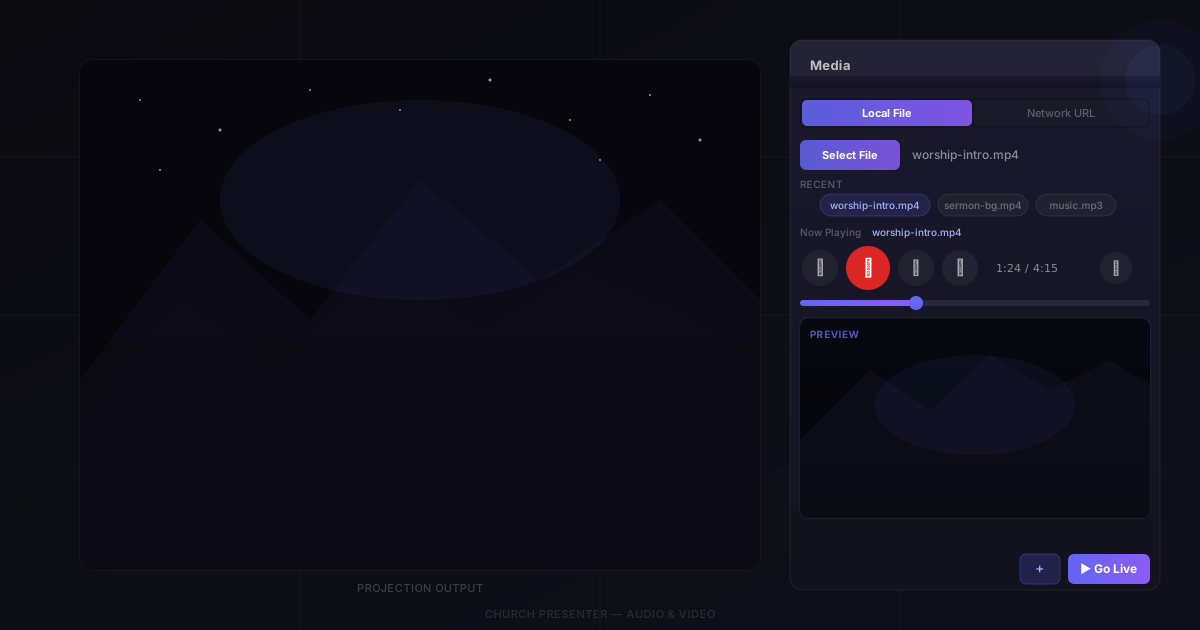
Church Presenter handles audio and video through the Media tab — a single place to load local files or network streams, preview and control playback, and send video to the projection screen. Audio keeps playing even when you switch to another tab, so worship music can run in the background while you manage slides or scripture.
Opening the Media tab
Press F10 or click the Media tab to open it.
The Media tab requires VLC to be installed on your computer — it uses VLC’s engine for broad format support and reliable network streaming. If VLC is not detected, the tab shows an install prompt.
Choosing a source
A segmented button at the top of the tab toggles between two source types:
- Local File — play a file from your computer or a connected drive.
- Network URL — stream from an HTTP or RTSP address.
Local files
With Local File selected, click Select File and choose from the file picker. Supported formats:
Video: mp4, mov, avi, mkv, wmv, flv, webm, m4v
Audio: mp3, wav, flac, aac, ogg, wma, m4a, aiff, opus
The file loads immediately and playback begins.
Network streams
Switch to Network URL, paste or type an address into the field, then click Load. HTTP and RTSP streams are supported — useful for IP cameras, online radio, or streaming servers on your local network.
Recent files
The tab keeps a scrollable row of up to 10 recent files and URLs. Click any chip to reload that source without browsing again. To keep a source permanently at the front of the list, click the star icon next to its chip — pinned items are never pushed out as the list fills up.
Playback controls
Once a source is loaded, a row of transport controls appears:
| Control | Action |
|---|---|
| Seek backward | Jump back 10 seconds |
| Play / Pause | Start or pause playback. The button turns red while playing |
| Stop | Stop playback and reset position to the beginning |
| Seek forward | Jump ahead 10 seconds |
| Volume | Click the volume icon to open a popup with a mute toggle and a slider from 0–100% |
A progress bar with a time readout (0:32 / 4:15) appears below the controls for files with a known duration. Drag the slider to scrub to any point in the file. For live streams with no fixed duration, an indeterminate progress bar shows while the stream is active.
Sending video live
The preview panel in the lower half of the tab shows a live preview of the video as it plays. To send it to the projection screen:
- Load a video file and confirm it looks correct in the preview.
- Click Go Live (the monitor icon at the top-right of the controls). Playback starts on the projection screen immediately.
While a video is presenting, the preview panel shows a “Now Presenting” indicator instead of the video frame — the full quality output is on the screen. To stop the video on the projection screen, press Escape.
Background audio
Audio files work differently from video. When an audio file is loaded, the Media tab shows a message that audio will continue playing even as you navigate to other tabs. There is no video to send live — the audio plays through the computer’s selected output device while you use Songs, Bible, or any other part of the app.
To change the audio output device, open Settings → Media.
Adding media to the schedule
Click Add to Schedule (the playlist icon) to save the current file or URL as a schedule item. During the service, clicking the item in the schedule loads and prepares the media instantly without having to browse for it again.
Keyboard shortcuts
| Key | Action |
|---|---|
| F10 | Open the Media tab |
| Space | Play / pause |
| M | Mute / unmute |
| Escape | Pause and clear the projection screen |
Tips
Load media before the service starts. The first time VLC opens a file, there can be a brief delay as it reads the file header. Load and preview your video or audio before the congregation arrives so there are no surprises.
Pin files you use every week. Intro videos, pre-service music playlists, or recurring announcement clips can be pinned to the recents row so they are always one click away.
Test your network stream before Sunday. Streams from IP cameras or online sources can drop out. Load the stream a day before, leave it running for a few minutes, and confirm it stays stable.
Keep video files local. Playing from a network drive can cause stuttering if the network is slow. Copy video files to the local machine before the service for reliable playback.
For displaying images and slide decks, see How to Display Images and Presentation Slides in Church Presenter.
New to Church Presenter? Start with How to Set Up Worship Presentation Software for the First Time.