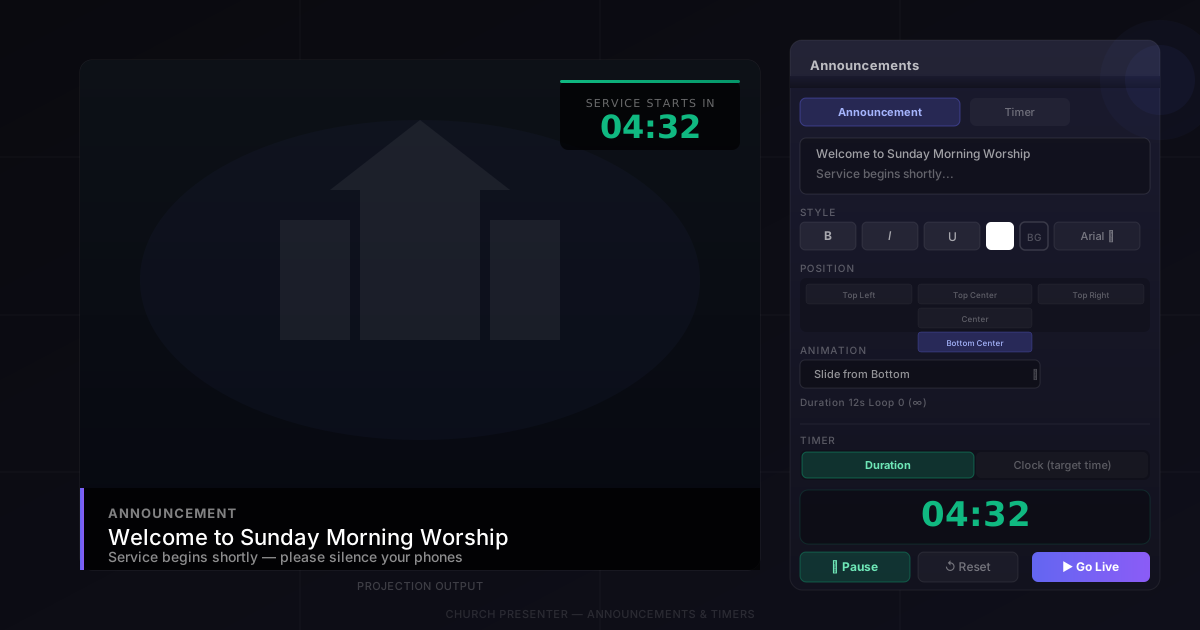
The Announcements tab in Church Presenter gives you two tools that are most useful in the minutes before a service begins: on-screen text with animated transitions, and a countdown timer. They work independently but are designed to be used together — a scrolling announcement banner alongside a timer counting down to the start of worship.
Announcements
Writing the text
Open the Announcements tab and type your message in the text field at the top. There’s no length limit, but shorter messages work better with scrolling animations. For longer announcements, a fade or slide-in that stays on screen tends to read more clearly than text scrolling across the bottom.
Styling
Below the text field you’ll find formatting controls:
- Font — choose the typeface from the font list.
- Size — set the font size in points.
- Bold, Italic, Underline — standard weight and style toggles.
- Shadow — adds a drop shadow to make text readable over bright backgrounds or images.
- Text color — pick any color with the color picker.
- Background color — defaults to transparent; set a solid or semi-transparent color to create a banner behind the text.
Position
The Position control places the text block at one of nine anchor points on the screen: Top Left, Top Center, Top Right, Center Left, Center, Center Right, Bottom Left, Bottom Center, or Bottom Right.
For a lower-third style announcement banner, Bottom Center is the most common choice. For a full-screen welcome message, Center works well.
Animation
The Animation dropdown controls how the text enters (and exits) the screen. The options cover most common presentation styles:
- Fade / Crossfade — the text fades in and out smoothly.
- Slide from Bottom / Top / Left / Right — the text slides in from an edge, holds, then slides back out.
- Slide along Bottom LTR / RTL and Slide along Top LTR / RTL — the text scrolls continuously across the top or bottom of the screen, ticker-style.
- None — the text appears and disappears instantly.
The Duration slider controls how long the animation cycle takes — both the time the text is visible and the transition speed. Longer durations give people more time to read.
Loop count
Set Loop to 0 to repeat the announcement indefinitely until you clear the screen. Set it to a specific number to play the animation that many times and then stop automatically. A loop count of 3 works well for a short pre-service message you want to show a few times without leaving it on screen forever.
Sending the announcement live
Click Go Live to project the announcement. Click Clear (or switch to any other content) to take it off screen.
Announcements can also be added to the service schedule — useful if you want a specific announcement to appear at a planned point in the service rather than ad hoc. Use the Add to Schedule button in the Announcements tab.
Timers
The timer is in the lower section of the Announcements tab. It shows on the projection screen independently of the announcement text — you can run a countdown and display announcement text at the same time.
Duration mode
Duration mode counts down a fixed amount of time. Set the hours, minutes, and seconds using the input fields (you can also click the up/down arrows to step through values in 5-second increments). Press Start to begin the countdown. Press it again to pause; press Reset to return to the full duration.
This is the mode to use when you want a countdown of, say, 5 minutes regardless of what time it currently is.
Clock mode
Clock mode counts down to a specific time of day. Switch the mode selector to Clock, then set the target hour and minute. The timer displays how long until that clock time arrives, and updates live as time passes.
Use this when your service always starts at the same time — set the target to 10:30 AM on Sunday morning and the timer will always show the correct remaining time no matter when you start the computer.
Note: If the target time has already passed today, the timer counts down to the same time tomorrow.
Expired message
Both modes support an Expired message — a line of text that appears on screen automatically when the countdown reaches zero. Type something like “Welcome! Service is starting now.” and it will replace the timer display the moment the countdown ends, without any manual action from the operator.
Leave the expired message blank if you just want the timer to disappear when it finishes.
Timer text color
Use the Timer color picker to set the color of the countdown digits on screen. White works on most backgrounds; use a contrasting color if your background is light.
Tips
Set everything up before people arrive. The announcement text and timer settings are saved between sessions, so you can configure them during the week and they’ll be ready on Sunday morning. Just open the Announcements tab and press Start.
Use a semi-transparent background for the announcement banner. A solid-color background on the text makes it readable over any slide or image behind it. Set the background color to black at around 60% opacity for a clean lower-third look.
Combine with a looping image slideshow. Run a photo slideshow from the Images tab in the background while the announcement and countdown are active. The images play behind the text automatically.
Clear the timer before the first song. Once you move to songs or scripture, the timer stays running in the background but is hidden from the projection screen. Press Reset before the service so it doesn’t show a stale countdown if you ever switch back.
Use the schedule for planned announcements. If the same announcement text appears at the same point every week — for example, a giving prompt before the offering — save it to the schedule so you can trigger it with a single click without retyping.
Ready to plan the full service flow? See How to Build and Run a Sunday Service Schedule in Church Presenter.