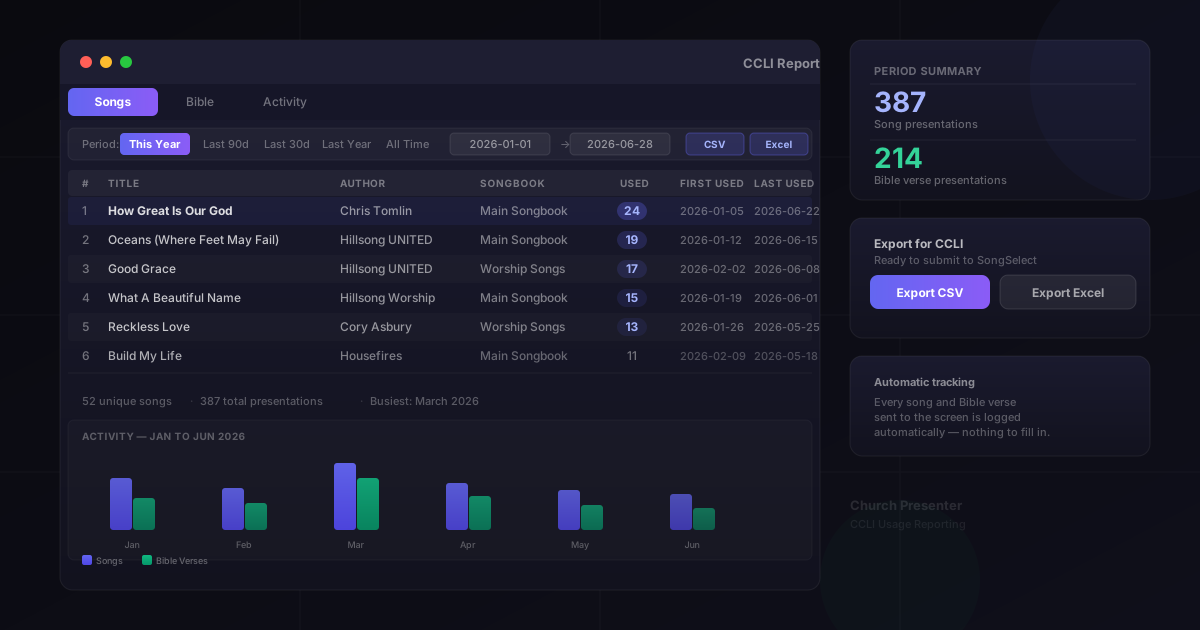
If your church holds a CCLI (Christian Copyright Licensing International) license, you’re required to report the songs and scripture passages you use in services each year. Church Presenter handles the data-collection side automatically — every song and Bible verse sent to the projector is logged with a timestamp in the background, so there’s nothing to fill in manually during or after a service.
This guide covers how to open the CCLI report, read the data, and export it for submission.
What gets tracked
Church Presenter records an event each time you send a song slide or a Bible verse to the projection output. Each event captures:
- Songs — the song title, author, songbook name, and song number.
- Bible verses — the translation name, book, chapter, and verse number.
Both are stored on disk in your app data folder with millisecond timestamps, so the report can be filtered to any date range after the fact.
Nothing needs to be configured. Tracking is always on.
Step 1: Open Statistics
Click the Statistics button in the top navigation bar — it’s the bar-chart icon near the right end of the toolbar. The Statistics dialog opens and shows your all-time top songs and verses at a glance.
Step 2: Open the CCLI Report
Inside the Statistics dialog, look for the CCLI Report section near the top. Click the CCLI Report button. A dedicated report window opens with three tabs: Songs, Bible, and Activity.
Step 3: Set your date range
At the top of the CCLI Report window you’ll see a date range selector. Use the quick presets to jump to a common period:
- Last 30 days — useful for a monthly check-in.
- Last 90 days — covers a quarter.
- This year — January 1 to today; the most common period for annual CCLI reporting.
- Last year — the full previous calendar year.
- All time — every event since the app was first used.
You can also set a custom range by picking specific From and To dates using the date pickers. The report updates immediately whenever the range changes.
Reading the Songs tab
The Songs tab lists every song displayed in the selected period, sorted by how often it was used. Each row shows:
- Rank — Position by play count
- Title — Song title
- Author — Author stored in the song’s metadata
- Songbook — Which songbook the song belongs to
- Song # — The song’s number within that songbook
- Times Used — How many times it was sent to the screen
- First Used — First date it appeared in the period
- Last Used — Most recent date in the period
If the Author column is blank for a song, it means the author wasn’t filled in when the song was added to your library. You can fix that in the song editor and it will populate on future exports.
Reading the Bible tab
The Bible tab works the same way for scripture. Each row represents a unique verse and shows the translation name, book, chapter, verse number, and play count. Verses are sorted by how frequently they were displayed.
Reading the Activity tab
The Activity tab shows a bar chart of presentation volume over time. The time axis adapts to your selected range:
- Up to 90 days — weekly bars.
- Up to 2 years — monthly bars.
- Longer ranges — yearly bars.
Each bar is split into two segments: songs and Bible verses, with a legend below the chart. This gives you a quick read on your church’s content cadence — which weeks were busiest, whether song use goes up around Christmas, and so on.
Step 4: Export the report
Two export formats are available, both accessible from buttons at the bottom of the report window.
CSV export (CCLI-formatted)
Click Export CSV to save a plain-text comma-separated file. The columns match what CCLI expects for song reporting: Title, Author, Songbook, Song Number, Times Used, First Used, Last Used. This format is ready to open in any spreadsheet app or upload directly to the CCLI SongSelect reporting portal.
Excel export (.xls)
Click Export XLS to save a multi-sheet Excel file. It contains three sheets:
- Songs — the full song list with all columns, including author and first/last used dates.
- Bible Verses — the verse list in the same format.
- Activity — the same period-by-period breakdown shown in the chart tab.
The Excel export is useful when you want to share the full report internally — for example, with a worship director or an administrator who needs to review usage before submitting to CCLI.
Tips
Report annually, not quarterly. CCLI requires annual reporting for most license types. The “This year” and “Last year” presets cover exactly those periods, so you won’t accidentally under-count or double-count.
Add authors before exporting. CCLI submission works best when the Author field is populated. Open the song editor, fill in the author for any blank entries in your library, then re-export.
Keep the app running through the whole service. Tracking happens when a slide is sent to the projector. If the app is closed and reopened partway through a service, songs presented before the restart are still counted — the log is written to disk immediately.
Don’t clear statistics mid-year. The Clear Statistics button in the Statistics dialog wipes the entire event log. Avoid using it until after you’ve exported the annual report.
Need to build the song library that feeds this report? See How to Build and Manage Your Song Library.