Sunday mornings move fast. A song changes at the last minute, the pastor jumps to an unplanned passage, a slide doesn’t show up — and all of it happens in front of the congregation. Most of that stress is preventable. Here are ten habits that make the operator desk a calmer place to be.
1. Build the schedule on Saturday
The single biggest source of Sunday morning chaos is building the service order live while people are arriving. Do it the night before instead.
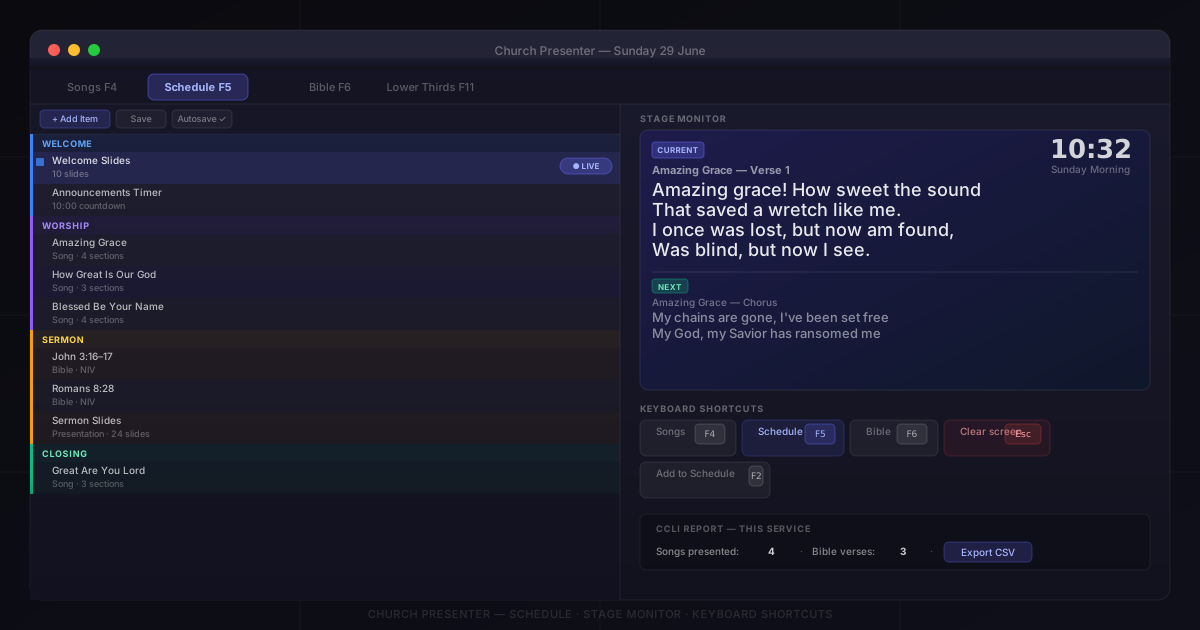
Open the Schedule tab, drag in your songs, Bible passages, and slides in order, and save the file. Church Presenter autosaves as you work, and you can reopen the same service file Sunday morning exactly where you left it. If the worship leader makes last-minute changes Sunday, you’re editing a nearly-complete schedule — not building one from scratch under pressure.
2. Pre-add every sermon passage to the schedule
If you know Saturday what passages the pastor will preach from, add them to the schedule before the service. In the Bible tab, select the verse or range, then click Add to Schedule.
On Sunday, those passages appear in the running order as ready-to-click items. Finding John 3:16 takes one click instead of twenty seconds of typing while the pastor is already mid-sentence.
3. Set up the stage monitor
The stage monitor is a confidence display that shows the worship leader the current and next slide — so they can see what’s coming without turning to look at the screen or asking the operator. It also shows a clock, a countdown timer, and section labels.
Go to Settings → Stage Monitor, enable it, and point it at a secondary display (a tablet, laptop, or small monitor facing the stage works well). The worship team will wonder how they managed without it.
4. Learn five keyboard shortcuts
You don’t need to memorise every shortcut in Church Presenter — just five will cover most of a typical service:
| Key | Action |
|---|---|
| F4 | Songs tab |
| F5 | Schedule tab |
| F6 | Bible tab |
| F2 | Add to Schedule |
| Escape | Clear screen |
Escape in particular is worth drilling until it’s reflexive. If anything goes wrong on screen — wrong slide, wrong content, technical glitch — Escape clears it instantly while you sort out what happened next.
5. Enable look-ahead for the band
Worship musicians need to know what’s coming next, not just what’s on screen now. Church Presenter’s look-ahead feature shows the next slide’s lyrics in a dedicated panel — so the guitarist sees the bridge coming before you’ve switched to it.
Enable it in Settings → Songs. It makes a noticeable difference in how tightly the band follows the words, especially during songs they don’t know well.
6. Let the pastor send verses from their phone
If the pastor decides mid-sermon to jump to a passage that wasn’t in the plan, the operator has to hear it, type it, find it, and send it live — all while trying not to make a mistake under pressure.
The Church Presenter mobile app removes that bottleneck entirely. Once connected over the church’s Wi-Fi, the pastor can browse the Bible, find the verse, and send it to screen themselves — without involving the operator at all. The operator stays in control of everything else; the pastor controls their own Scripture.
See How to Connect the Mobile App to Church Presenter for setup instructions.
7. Use color labels to organize the schedule
When the schedule is a long list of items in the same white text, it’s easy to lose your place mid-service. Color labels let you visually separate sections at a glance.
Right-click any item in the Schedule tab and assign a color. A simple system works well: one color for worship songs, another for announcements, another for sermon passages. During the service, your eyes can jump to the right section instantly rather than reading every item to find your place.
8. Check font size from the back of the room
Text that looks readable on the operator’s laptop is often surprisingly small at the back of a real room. Before the congregation arrives, push a song live and walk to the furthest seats. If you have to squint, the font is too small.
Adjust Font Size in Settings → Songs (and separately in Settings → Bible for verse text). The right size is almost always bigger than feels comfortable from up close. Auto Fit is useful for Bible verses specifically — it scales each verse to fill the screen without overflow.
9. Have a “go dark” plan
Things go wrong. A slide comes up too early, the wrong song plays, a technical glitch puts something unexpected on screen. Your first move in any of those situations should be instant: press Escape to clear the screen, then figure out what happened.
A blank or logo background is far less distracting than a wrong slide sitting there while the operator scrambles. Practice the reflex: if in doubt, clear the screen first. Recovery is easy; an embarrassing slide lingering for thirty seconds is not.
10. Export the CCLI report the same day
If your church holds a CCLI license, you need to report the songs and Scripture you present each service. Church Presenter tracks all of this automatically — every song and verse you send live is logged with timestamps. The report is in Edit → Statistics → CCLI Report.
The mistake most operators make is leaving the export for later — and “later” often means weeks, by which point the numbers feel abstract and you’re less motivated to do it. Spend two minutes after the service clicking Export CSV while the service is still fresh in memory. File it with your other service records and you’re done.
None of these tips require a major workflow overhaul — most are a one-time setup or a small habit change. Start with the two or three that would have helped most last Sunday, and add the rest over time.
Want to go deeper on any of these? Start with How to Build and Run a Sunday Service Schedule — the foundation everything else builds on.