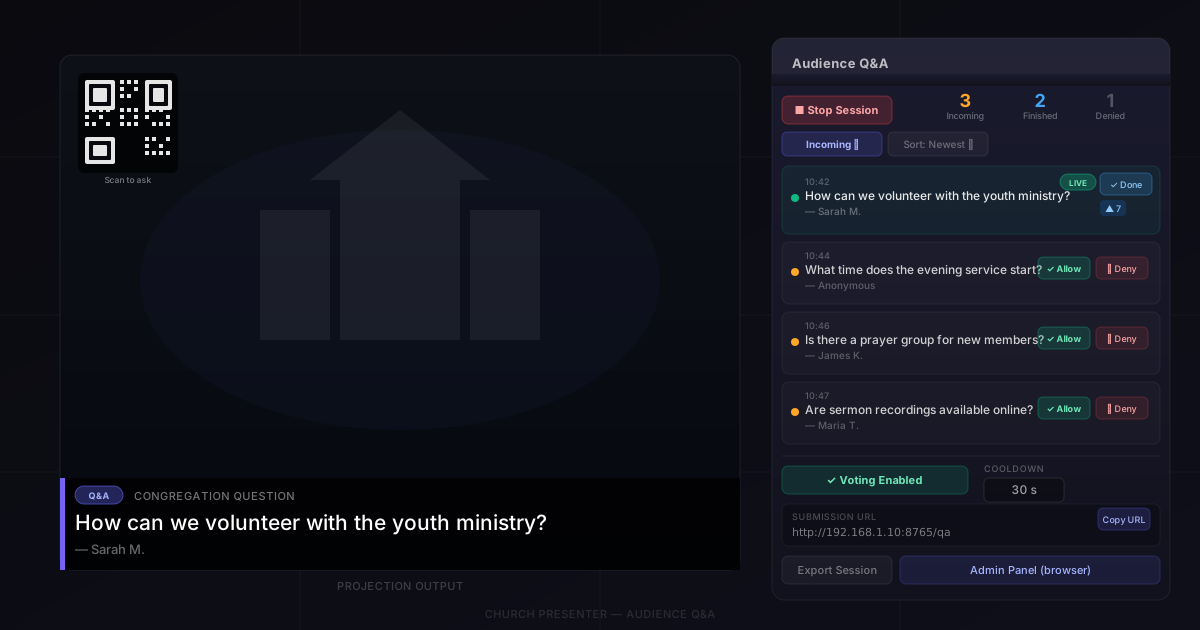
The Audience Q&A (Questions & Answers) tab in Church Presenter lets congregation members submit questions from their phones by scanning a QR code. Every question goes through a moderation queue before anything appears on screen, so you stay in full control of what gets displayed and when.
This guide covers starting a session, receiving and moderating questions, showing them on the projection screen, and exporting the session afterward.
What you need
- Church Presenter running on the desktop with the built-in server enabled. Go to Settings → Server and click Start Server if it isn’t already running.
- A phone or tablet — congregation members don’t need the Church Presenter app. Any phone with a camera and a browser can submit questions by scanning the QR code.
Step 1: Start a Q&A session
Open the Q&A tab and click New Session. This activates the submission queue and makes the QR code available for attendees to scan.
The right panel shows the submission QR code — a link to the /qa page on your local server where people type and send their questions. You can project this QR code directly onto the screen by clicking Show QR on Display. The QR remains visible on the projection until you show a question or hide it manually.
Tip: Set a custom message that appears alongside the QR code on the projection screen — something like “Have a question? Scan to ask.” — using the QR message field in the right panel.
Step 2: Receive questions
As people scan the code and submit questions, they appear in the Incoming queue with an orange status indicator. Each entry shows the time the question arrived, the submitter’s name (if they chose to provide one), and the question text.
The operator’s job at this stage is simply to watch the list. Questions stay in the Incoming state until you approve or deny them — nothing goes on screen automatically.
You can also type a question directly using the input field at the top of the list. This is useful when someone asks verbally and you want to add it to the queue yourself.
Step 3: Moderate questions
Each question in the list has action buttons:
- Approve (✓) — moves the question to the approved queue, where it can be sent live.
- Deny (✗) — removes the question from the active queue. It won’t appear on screen.
- Edit (pencil) — lets you rephrase a question before approving it. The edited text is what gets displayed.
- Delete (trash) — permanently removes the question from the current session.
Use the Filter dropdown to see only a specific subset: All, Incoming, Approved, Incoming + Approved, Done, or Denied. Use the Sort dropdown to reorder by newest, oldest, most votes, or least votes.
Step 4: Display a question on screen
Once a question is approved, a Go Live button appears next to it. Click it to project the question text onto the screen.
While a question is live, its entry in the list is highlighted in green. Click Done to clear it from the screen and mark it as finished, or click Deny to remove it without marking it done.
When you display a new question, the previously displayed one is automatically marked as done — you don’t need to manually clear the screen between questions.
Styling and position
How a question looks on screen is fully configurable from the right panel of the Q&A tab under Display Styling.
Text appearance:
- Font — choose any font installed on your system.
- Size — set the font size from 8 to 200 points.
- Bold, Italic, Underline — standard weight and style toggles.
- Shadow — adds a drop shadow behind the text. When enabled, you can set the shadow color, size, and opacity separately for fine-grained control.
- Text color — pick any color with the color picker.
Background:
- Background color — a colored backdrop behind the question text. Set it to a dark, semi-transparent color (e.g. black at 70% opacity) for a clean lower-third look that stays readable over any slide or video behind it.
- Opacity — a slider controls the transparency of the background independently from the text.
Position:
Nine anchor points let you place the question anywhere on screen: Top Left, Top Center, Top Right, Center Left, Center, Center Right, Bottom Left, Bottom Center, and Bottom Right.
Bottom Center is the most common choice for a lower-third style overlay. Center works well for a standalone question card with no other content on screen. Top Center is useful when the speaker’s face would be obscured by a bottom overlay.
These settings apply to both displayed questions and the QR code when you project it — so you can position the submission QR code wherever it fits best alongside your background slide.
Voting
If you enable Voting using the toggle in the right panel, attendees on the submission page can upvote or downvote approved questions from their phones. Vote counts appear next to each question in the operator list. Sorting by Most Votes lets you prioritize the questions the room cares about most.
Voting is per device and per IP — each person can vote once per question, and can change or undo their vote.
Public access
By default, the submission link only works on your local Wi-Fi network. If attendees are joining remotely or your venue’s network is structured in a way that prevents device-to-device traffic, click Enable Public Access in the right panel. Church Presenter sets up a temporary public tunnel so people can submit questions over mobile data without joining the church network.
When public access is active, the right panel lets you switch the on-screen QR code between the local URL and the public URL — use the Local / Public toggle.
The admin panel
There’s also a browser-based admin panel at /qa/admin on your server. It shows the same moderation controls as the desktop — useful if a second person is managing Q&A from a tablet while the main operator handles slides. Protect it with a password using the Admin password field in the right panel.
The right panel shows a dedicated Admin QR code alongside the submission QR code. If you’ve set an admin password, it’s embedded directly in the QR code URL — scanning it opens the admin panel already authenticated, so whoever you hand it to doesn’t need to type a password manually.
Moderating from the mobile app
The Church Presenter Mobile app includes a native Q&A admin screen with the full set of moderation controls: approve, deny, edit, mark done, go live, delete, add questions manually, and clear the display. It works over the same local server connection as the rest of the mobile app.
This is the most comfortable way to handle Q&A from a phone. A second person — a pastor, host, or tech volunteer — can sit in the congregation or on the platform, review incoming questions on their phone, and send the right ones live, all without touching the desktop.
Spam and rate limiting
The Cooldown setting (in seconds) controls how long a person must wait before submitting another question. The default is 30 seconds. Set it to 0 to allow unlimited submissions, or increase it to slow down repeated submissions. The cooldown is per IP address.
Session history and export
When you click Stop Session, all current questions move to the History tab. You can review them, export to a .txt file, or import a previous export to restore the list. The history persists between app restarts, so you can always go back to review questions from a past service.
If you want to start fresh and export the current session in one step, click Clear All and choose Export & Clear — this saves the questions to a file before deleting them.
To continue a session that was interrupted — for example, if the app was restarted — click Resume when a previous session is in history. All the questions come back into the active list and the session continues.
Tips
Project the QR code at the start, not during. Show the QR code during pre-service slides or the opening welcome, so people have time to scan it before the Q&A segment begins. Taking questions during a talk while also scanning for the first time slows things down.
Enable voting when you have more questions than time. If your session collects many questions and you can only answer a few, voting helps surface the most relevant ones without you having to judge them yourself.
Use the cooldown to manage volume. For a large congregation, a 60-second cooldown is enough to prevent the queue from filling with duplicates while still letting genuine new questions through.
Keep the admin password short. If a second operator is managing moderation from a tablet, they’ll be typing the password on a phone keyboard. A 4–6 character alphanumeric password is secure enough for a local network context and easy to type quickly.
Clear the session before the next service. Start the following week fresh by stopping the session and clearing the history, so the queue isn’t cluttered with last week’s questions.
Want to combine Q&A with a countdown before the service? See How to Use Announcements and Timers in Church Presenter.