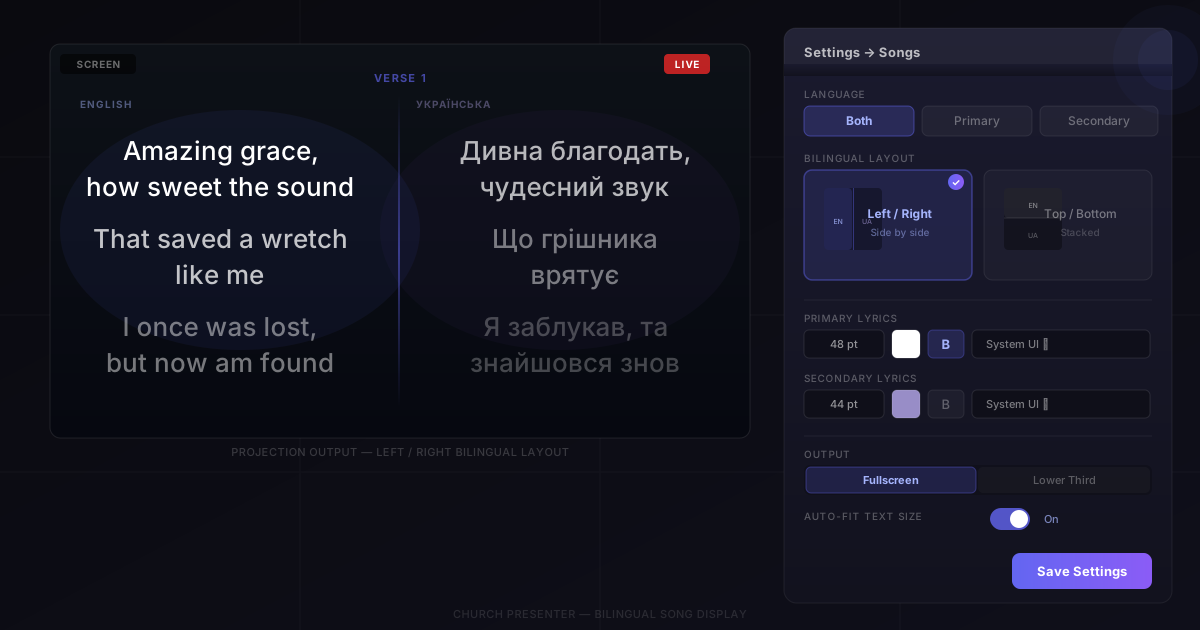
If your congregation sings in more than one language, Church Presenter can display both sets of lyrics at the same time — no manual switching, no separate song files, no extra computers. You write both languages into a single song file, then choose a layout that fits your room and setup. This guide covers three layouts: side by side on one screen, stacked on one screen, and one language per physical display.
Step 1: Add secondary lyrics to your songs
Bilingual display starts in the song editor. Every song has a Secondary Title field and a Secondary Lyrics section alongside the primary ones.
- Open the Songs tab F7.
- Right-click a song and choose Edit Song, or select it and click the Edit button (pencil icon).
- Fill in the Secondary Title field with the song’s name in the second language.
- In the Secondary Lyrics section, type or paste the translation. Use the same section headers as the primary lyrics —
[Verse 1],[Verse 2],{Chorus}, and so on — in the same order. - Click Save.
Church Presenter stores both languages in one .song file and lines them up section by section at display time. If the primary has three sections and the secondary has three sections in the same order, each slide will pair them correctly. If the section counts don’t match, the pairing breaks — so keep them in sync.
A bilingual song file looks like this:
[Primary]
title: Amazing Grace

[Verse 1]
Amazing grace, how sweet the sound
That saved a wretch like me

{Chorus}
My chains are gone, I've been set free

[Secondary]
title: Дивна благодать

[Verse 1]
Дивна благодать, чудесний звук
Що грішника врятує

{Chorus}
Мої кайдани відпали, я вільний
Step 2: Enable bilingual display in Settings
Once your songs have secondary lyrics, tell Church Presenter to show them.
- Open Settings (⚙ in the toolbar).
- Go to the Songs tab.
- Find the Language setting under the Lyrics section. Set it to Both. This setting is configured independently for the fullscreen output and the lower-third output — set whichever applies to your setup.
- Click Save.
From this point on, every song with secondary lyrics will show both languages on screen. Songs that have only primary lyrics are unaffected — they display as normal.
Layout option 1: Side by side (Left / Right)
The left/right layout divides the screen into two equal columns — one language on the left, one on the right. This works well when both languages use a similar script and text length, and when your projector is wide enough (16:9 is ideal).
- In Settings → Songs, set Language to Both.
- Set Bilingual Layout to Left / Right.
- Click Save.
The primary language appears in the left column and the secondary in the right. Font sizes, colors, and alignment are set independently for each using the Primary Lyrics and Secondary Lyrics cards in settings — you can make each language larger or use a different color to help the congregation distinguish them at a glance.
Tip for RTL languages: if one of your languages reads right to left (Arabic, Hebrew, etc.), set the secondary layout to right-aligned to give the text a natural reading direction even when displayed alongside a left-to-right language.
Layout option 2: Stacked (Top / Bottom)
The top/bottom layout stacks both languages vertically on the same screen — primary above, secondary below. This is the better choice when each language needs more horizontal space, or when the two scripts have very different character widths.
- In Settings → Songs, set Language to Both.
- Set Bilingual Layout to Top / Bottom.
- Click Save.
With stacked layout, each language gets roughly half the vertical screen area. If one language consistently has longer lines than the other, reduce its font size slightly in settings to keep both blocks visually balanced.
Tip: Enable Auto-fit on the lyrics font size so the app automatically scales each section to fill its area. Long chorus lines won’t overflow and short ones won’t leave awkward gaps.
Layout option 3: One language per screen
If your venue has two projection screens, you can send each language to its own display. This gives each language the full screen width and keeps the layout uncluttered — particularly useful in larger venues where the screens are far apart.
Church Presenter configures language separately for the fullscreen output and the lower-third output. Use this to route different languages to different displays:
- In Settings → Projection, assign each of your two screens to a separate output. Set the screen you want for your primary language to Fullscreen mode, and the screen for your secondary language to Lower Third mode.
- Open Settings → Songs.
- Under Fullscreen output, set Language to Primary.
- Under Lower-third output, set Language to Secondary.
- Adjust Lower Third Height to 100% so the text fills the entire second screen rather than appearing as a band at the bottom.
- Click Save.
Now when you send a song live, the first screen shows only the primary language and the second shows only the secondary — each filling its display entirely.
Note: Because the language setting is per output type (fullscreen vs. lower third), two outputs both set to Fullscreen mode share the same language setting. The fullscreen/lower-third pair is the most straightforward way to achieve a true split between languages on separate physical screens.
Showing only one language (temporarily)
You can switch to a single-language display at any time without editing your song files:
- To show primary only: set Language to Primary in Settings → Songs.
- To show secondary only: set Language to Secondary.
- To swap which translation appears as “primary” on screen: click the Swap Languages button in the Songs tab toolbar. This does not change the file — it just reverses which block is treated as primary for this session.
This is useful when you have guests who speak only one language, or when a particular song in your schedule doesn’t need the bilingual treatment.
Styling each language independently
Both the left/right and top/bottom layouts use independent style cards for each language. In Settings → Songs, you’ll find separate font, color, size, and alignment controls for:
- Primary Lyrics — the main translation
- Secondary Lyrics — the second language
A few approaches that work well in practice:
Different colors — use white for the primary and a softer gray or cream for the secondary. The congregation’s eye naturally falls on the brighter text, so the primary language reads first.
Different font sizes — if one language uses more characters to express the same phrase (common with agglutinative languages), give it a slightly smaller font so both blocks take up similar space on screen.
Bold primary, regular secondary — bold text reads more easily at projection distances. Setting the primary language to bold and the secondary to regular creates a clear visual hierarchy without changing the colors.
Tips for smooth bilingual services
Keep section structure identical in both languages. If the primary has a verse and two chorus repetitions, structure the secondary the same way. Church Presenter pairs sections positionally — if the counts differ, later sections show mismatched or missing content.
Use Auto-fit for long-text languages. Languages like German or Finnish have longer words on average. Auto-fit prevents text from overflowing on long slides without requiring you to manually adjust font sizes for each song.
Add bilingual songs to the schedule in advance. Secondary lyrics are pulled from the song file automatically — there’s nothing extra to do at the service. But it’s worth previewing each bilingual song in the schedule beforehand to confirm the section pairing looks right before Sunday.
The stage monitor always shows the primary language. If your worship leader uses a stage monitor, they see the primary lyrics and the next-section preview in that language only. Keep this in mind when deciding which language to mark as primary.
Test both screens before the service if using split-screen output. Send a song live during setup and walk to each screen to confirm the right language is showing and the text is legible from the congregation’s seats.
For more on song management, see How to Build and Manage Your Song Library.
To add bilingual songs to a running order, see How to Build and Run a Sunday Service Schedule.