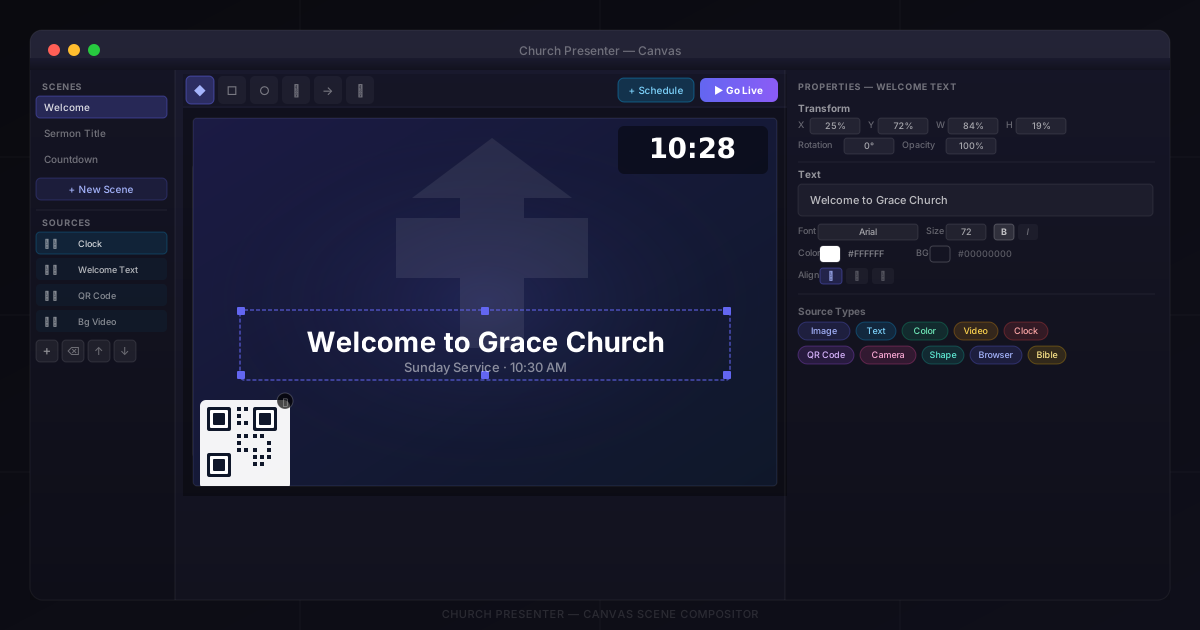
The Canvas tab in Church Presenter is a scene compositor — a layer-based editor where you combine multiple sources (images, text overlays, video, live camera feeds, clocks, QR codes, and more) into a single composition and send it to the projection screen as one unified output.
It works similarly to OBS Studio’s scene editor, but lives entirely inside Church Presenter alongside your songs, scripture, and slides.
Opening the Canvas tab
Click the Canvas tab in the tab bar at the top of the Church Presenter window.
The tab opens in a three-panel layout:
- Left panel — your list of scenes (top) and the sources inside the current scene (bottom).
- Center panel — the interactive canvas preview with a drawing toolbar across the top.
- Right panel — properties for the currently selected source.
Step 1: Create a scene
If you have no scenes yet, the canvas area shows a Create Scene button. Click it to create your first scene.
You can have as many scenes as you like — for example, one for a welcome slide, one for a pre-service loop, and one for a countdown clock. To add more, click + New Scene at the bottom of the scenes list.
To rename a scene, double-click its name in the list or click the pencil icon next to it. To delete a scene, click the × icon.
Aspect ratio
When a new scene is created, its canvas size is automatically set to match your projection screen’s resolution. If you resize your window or change your projection settings afterward and the canvas aspect ratio no longer matches, Church Presenter shows a warning banner with a Fix button that resizes the canvas to match instantly.
Step 2: Add sources
With a scene selected, click the + button below the sources list to open the Add Source menu. The available source types are:
| Source | What it does |
|---|---|
| Image | Displays a static image file (jpg, png, etc.) |
| Text | Renders a text overlay with custom font, size, color, and alignment |
| Color | Fills a region with a solid color or linear gradient |
| Video | Plays a local video file, with optional loop and volume control |
| Clock | Shows the current time or a countdown to a target time |
| QR Code | Generates a QR code from a URL or Wi-Fi credentials |
| Camera | Displays a live camera feed (webcam or Blackmagic DeckLink input) |
| Screen Capture | Captures a region of the screen or a specific application window |
| Browser | Renders a live web page at a configurable size and frame rate |
| Shape | Draws a rectangle, ellipse, line, arrow, or freehand path |
| Bible | Shows a Bible verse and reference text (synced from the Bible tab) |
Each new source is added at the top of the sources list (front of the z-order) and selected automatically so you can configure its properties right away.
Step 3: Configure source properties
Click any source in the sources list to select it. Its properties appear in the right panel.
Every source type has its own properties, but a few settings are common to all:
- Position and size — drag handles on the canvas to reposition or resize, or type exact values in the properties panel.
- Rotation — rotate the source to any angle.
- Opacity — fade the source independently of others.
Text source
Set the text content, font family, font size, color, background color, bold/italic, horizontal and vertical alignment, and line spacing. The preview updates live on the canvas.
Color source
Choose a solid fill color. Enable Gradient to blend between two colors — set both colors, the angle, and the midpoint position.
Video source
Pick a local video file. Enable Loop so it replays automatically. Adjust Volume to control the audio level independently.
Clock source
Choose between Clock mode (live time) and Countdown mode (counts down to a target hour, minute, and second). Toggle 24-hour vs. 12-hour format, and choose whether to show hours and seconds. Style the clock with font, size, color, and background.
QR Code source
Choose URL to encode a web address, or Wi-Fi to encode wireless credentials (SSID, password, and encryption type). Customise the foreground and background colors, or enable a transparent background so the QR code floats over the scene.
Camera source
Select from connected cameras detected by your system. If you have a Blackmagic DeckLink card installed, it also appears here, giving you a live SDI or HDMI capture source inside the scene.
Screen Capture source
Capture a fixed screen region (set X, Y, width, height) or capture a specific application window by title. The capture interval controls how often the snapshot refreshes (default 100 ms).
Browser source
Enter any URL. Set the render width and height (defaults to 1920×1080), frame rate, and optionally inject custom CSS. Enable Force Transparent to remove the web page background, which is useful for embedding web-based graphics or lower thirds that have a transparent HTML background.
Bible source
The Bible source displays whatever verse and reference text you have selected in the Bible tab. Style the verse and reference independently with separate font sizes and colors.
Step 4: Arrange sources
Sources in the list are stacked from bottom (back) to top (front). The source at the top of the list sits in front of everything else.
To reorder:
- Click a source in the list to select it.
- Use the up arrow (move forward) and down arrow (move backward) buttons in the source toolbar.
- Press Delete or Backspace to remove the selected source.
Each source row has two quick toggles:
- Eye icon — hide or show the source without removing it. Hidden sources are dimmed in the list and invisible in the output.
- Lock icon — lock the source so it can’t be accidentally moved or resized on the canvas. The lock icon turns closed; locked sources can still have their properties edited.
Step 5: Draw shapes directly on the canvas
The toolbar at the top of the canvas area contains six drawing tools:
| Tool | Shape |
|---|---|
| ◆ Select | Move and resize existing sources |
| □ Rectangle | Draw a filled or outlined rectangle |
| ○ Ellipse | Draw a filled or outlined ellipse |
| ∕ Line | Draw a straight line |
| → Arrow | Draw a line with an arrowhead |
| ✎ Freehand | Draw a freehand path |
When you select a drawing tool (anything other than Select), two color pickers appear next to the tools:
- Stroke color — the outline or line color.
- Fill color — the interior fill color (can be set to transparent for outlines only).
Draw directly on the canvas preview and the shape is added as a Shape source in the sources list, where you can reposition, resize, or edit its colors further.
Step 6: Go live
When the scene looks right in the preview, click Go Live (the monitor icon in the top-right of the canvas toolbar). The scene is sent to the projection screen immediately.
To stop, press Escape.
Adding a scene to the schedule
Click Add to Schedule (the playlist icon, next to Go Live) to save the current scene as a schedule item. When you click it during a service, the scene is instantly loaded and sent live without having to navigate back to the Canvas tab.
This is the best way to build a pre-service sequence — create a “Welcome” scene, a “Pre-service loop” scene, and a “Countdown” scene, add all three to the schedule, then trigger them in order from the Schedule tab.
Tips
Build scenes before the service starts. The canvas preview renders everything in real time, so complex scenes with video and camera feeds are worth testing ahead of time to confirm performance.
Use the Color source as a background. Add a full-canvas Color source as the bottom layer of your scene. Set it to a solid black, a branded color, or a gradient to give the scene a clean background without needing an image file.
Combine with Lower Thirds. The Canvas tab is for full scenes; for animated name-slide overlays, use the Lower Thirds tab alongside it. Lower thirds layer on top of whatever is on screen, including a live Canvas scene.
Lock background sources. Once you’ve positioned a background image or color, lock it so accidental clicks on the canvas don’t move it while you’re arranging foreground elements.
Save multiple scenes for different service segments. Use one scene for pre-service music (looping video + clock + church logo), a second for the sermon title slide (background image + text), and a third for the offering moment (text + QR code pointing to your giving page).
For playing standalone audio and video files outside a canvas scene, see How to Play Audio and Video in Church Presenter.
For animated lower-third overlays, see How to Create Animated Lower Thirds with Lottie-Gen.
New to Church Presenter? Start with How to Set Up Worship Presentation Software for the First Time.