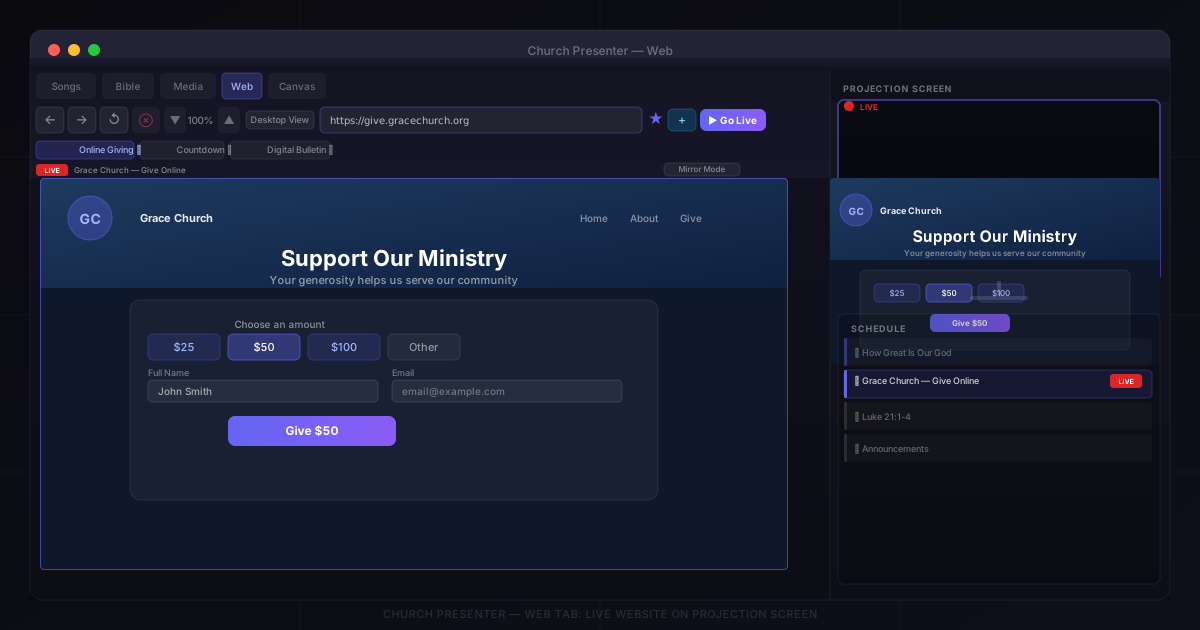
The Web tab in Church Presenter lets you project any live website directly to your projection screen — a church’s giving page, a live stream chat, a countdown page, a digital bulletin, or any other web-based content. The browser runs inside the app itself, so there’s no external window to manage and no alt-tab required.
Before you start: enable Website output
The Web tab’s Go Live button is only active when at least one projection output has website display enabled.
- Open Settings (⚙ in the toolbar).
- Go to the Projection tab.
- Select the projection screen you want to use.
- Enable Show Website for that screen.
- Click Save.
You also need a secondary display connected for the Go Live button to activate — the website renders on the projection screen, not the operator’s monitor.
Opening the Web tab
Click the Web tab in the tab bar at the top of the Church Presenter window.
The tab opens with a toolbar across the top and a preview area below. The preview shows exactly what the live browser is rendering — or a blank state until you enter a URL.
Step 1: Enter a URL
Type any web address into the URL bar. You don’t need to include https:// — if you type a domain like giving.yourdomain.org, Church Presenter adds the prefix automatically when you press Enter.
Press Enter to load the page in the preview. The preview updates immediately so you can confirm the page looks right before sending it live.
Step 2: Navigate and browse
The toolbar has standard browser navigation controls:
| Button | Action |
|---|---|
| ← Back | Go to the previous page |
| → Forward | Go forward in history |
| ↺ Refresh | Reload the current page |
| Clear Cache | Delete the local browser cache stored in ~/.churchpresenter/webview-cache |
Zoom: Use the zoom controls (▲ / ▼ with a percentage display between them) to scale the page up or down. This affects both the preview and the live output. The default is 100%.
Mobile / Desktop toggle: Switch between desktop and mobile user-agent with the Desktop View / Mobile View button. Mobile view triggers the page’s responsive layout — useful for sites whose mobile layout is cleaner at projection distances.
Step 3: Bookmark frequently used sites
If your church has sites you use every week — a giving page, a live stream, a digital bulletin — save them as bookmarks so you can switch between them with one click.
- Navigate to the site.
- Click the ☆ star icon in the toolbar to bookmark it. The star fills to show the site is saved.
- A bookmarks bar appears below the toolbar showing all saved sites. Click any bookmark to load it instantly.
To remove a bookmark, click the ✕ button on its chip in the bookmarks bar, or navigate to the bookmarked URL and click the filled star to un-bookmark it.
Step 4: Go Live
When the page looks right in the preview, click the Go Live button (monitor icon, highlighted in your theme’s primary color).
The website immediately appears on the projection screen. A red LIVE badge appears in the toolbar alongside the page title (or URL if no title is available).
To stop: press Escape or switch to any other content (a song, Bible verse, or slide). The projection screen returns to the background.
Step 5: Control the live page from the operator desk
Once a website is live, you can still interact with it from the Web tab without touching the projection screen. Church Presenter offers two preview modes you can switch between while live:
Mirror mode (default)
Mirror mode shows a live screenshot of what’s on the projection screen. You can:
- Click anywhere on the preview — Church Presenter forwards the click to the live browser at the correct coordinates, so clicking a button or link on your preview actually activates it on the projection screen.
- Scroll — scroll events are forwarded to the live browser.
- Type to page — a Type to Page input field appears below the live badge. Type in it and each character is injected into whatever input field is focused on the live page. This works on standard HTML inputs and text areas. Press Focus First Input (the button next to the field) to automatically focus the first text input on the live page.
macOS note: Mirror mode uses a screenshot of the live browser window. If the preview stays blank after going live, go to System Settings → Privacy & Security → Screen Recording and grant Church Presenter permission.
Interactive mode
Click the Mirror Mode / Interactive Mode toggle (visible when the site is live) to switch to an embedded browser inside the operator’s preview. In this mode you browse and interact with the page in the preview directly — navigation, clicks, and scrolling all happen live. Navigating to a new page in interactive mode updates the projection screen immediately.
Use interactive mode when you need to fill out a form, navigate through pages, or interact with JavaScript-heavy content during the service.
Adding a website to the schedule
For planned web content — a pre-service giving reminder, a countdown page — add it to the schedule so you can trigger it with one click alongside songs and Bible verses.
- Enter the URL and let the page load.
- Click the Add to Schedule button (playlist icon) in the toolbar.
- The page is added to the Schedule panel as a Website item, showing the page title.
During the service, click the item in the schedule to load that URL and send it live automatically — no need to navigate to the Web tab manually.
See How to Build and Run a Sunday Service Schedule for the full schedule walkthrough.
Tips
Pre-load before the service. Open the Web tab a few minutes early and navigate to the sites you plan to use. Pages with heavy scripts can take a moment to fully render — loading them in advance means the projection screen looks polished when you go live.
Bookmark your giving page. If your church uses an online giving platform, saving it as a bookmark means one click during the offering moment, even if the operator isn’t the same person each week.
Use mobile view for simpler layouts. Many giving and registration sites have cleaner, larger-text mobile layouts that read better from the back of a room than their desktop counterparts.
Clear the cache if a page looks outdated. The browser caches resources to speed up repeat visits. If a page isn’t showing updated content (for example, a recently updated digital bulletin), click Clear Cache and reload.
Add web pages to the schedule like any other item. Website schedule items sit in the same running order as songs, Bible verses, and slides — you can drag them to the right position and click through the service without switching tabs.
For embedding a website as part of a larger composed scene (layered with text, clocks, or images), use the Browser source inside the Canvas tab instead. See How to Use the Canvas Scene Compositor in Church Presenter.
New to Church Presenter? Start with How to Set Up Worship Presentation Software for the First Time.